
Technology Tools and Tips
Prince William County Public Schools provides a variety of tools to help increase communication between teachers, students, and parents.
Canvas Parent
Parents may sign up for an Observer role in Canvas, our learning content management system. With this role, parents and guardians can view their child's courses in Canvas. Observers cannot submit work for the children they observe, but they can see course announcements, course content, and assignments.
How students can create a pairing code for their parent or guardian.
- Gettings Started - Pairing
To become an observer, you will first need to obtain a Pairing Code from your student. To find the pairing code, the student will need to log in to Canvas, click on Account on the top left, then settings. Off to the right you should see an option to pair with Observer. Click on that to get the code!

- Canvas Parent - Next Steps
Once you pair with your student's account, you will then be able to see all of your student's courses on your dashboard. From here, you may view content from each specific course. In each course, you will find announcements, a syllabus, and modules that contain notes, assignments, and submissions.
Reminder - Student grades should be accessed through ParentVUE, not Canvas. Report Card grades are pulled from ParentVUE, not Canvas.
Notifications - Canvas notifications can get overwhelming. To adjust your settings, go to Account, Settings, Notifications. From here, you can personalize the type and frequency of the notifications that you receive.
- Canvas Parent Mobile App
There is a Canvas Parent Mobile App available in the Apple App Store and Google Play Store. While it may sound convenient, the mobile app is very limited in content. For full access from mobile devices, please go through your browser or use a computer.
If you sign in and your mobile app automatically opens, go back to the sign in screen, click on the aA in the address bar, and click on 'Request Desktop Website.'
Additional Canvas information can be found here.
To go to Canvas, click here.
ParentVUE
Upon registration and providing a valid email address, you will recieve a ParentVUE Activation email from [email protected]. With the information from that email, you will be able to set up your ParentVUE account.
From ParentVUE, you can...
- Review messages
- Report absences
- Review grades - assignments that impact overall averages are shown here
- Access your student's schedule
- Review and complete PWCS documents
The ParentVUE mobile app is useful and convenient and available in the Apple App Store and Google Play Store.
Additional ParentVUE information can be found here.
To go to ParentVUE, click here.
SchoolStatus
As part of our commitment to continuous improvement, and with family engagement and communication as core aspects of our division's strategic plan, communication from the division and school is shifting to a new communication platform called SchoolStatus. This tool allows for two-way communication with automatic translation, including through text message.
In order to ensure accurate delivery of messages, please make sure that phone numbers and email addresses are up to date in ParentVUE.
It is very easy to accidentally unsubscribe from School Status messages. If you feel as though you may have accidentally unsubscribed, you can resubscribe by sending an email to [email protected] from the email address that you had been using, that should take you off the unsubscribe list. There should be a confirmation email coming your way once that goes through.
iPads and Accessories
Each student is given an iPad, case, charging block, charging cord, and headphones at the start of their school year. Please remember that these devices and accessories are the property of PWCS and need to be treated with care.
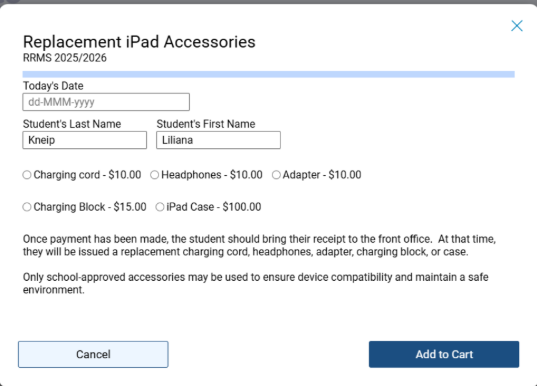
Replacement iPad accessories can be provided to students who have lost or damaged them during the school year. To obtain a replacement accessory, students need to go to their Student Quick Pay accounts and look for the “Replacement iPad Accessories” button or bring cash (exact change please) or check (payable to Reagan Middle School) to the front office. The student then needs to bring their dated proof of payment to the front office where they can pick up their replacement item.
Reagan Middle School has the following accessories available for replacement:
- Charging cord $10.00
- Headphones $10.00
- Adapter $10.00
- Charging block $15.00
- iPad case $100.00
Only school-approved accessories may be used to ensure device compatibility and to maintain a safe environment.